 Pinlyy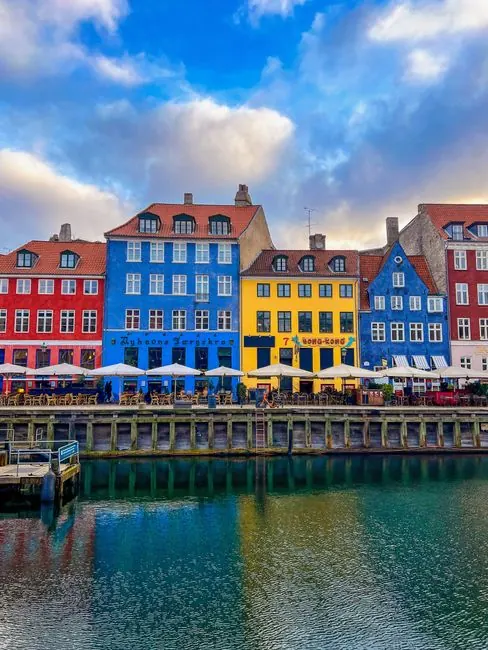
Open the map in Apple Photos
On current iPhone software, open Photos, go to Library, open Sort and Filter, and choose Show Map. Zoom out to find a trip or zoom in to explore a neighbourhood. Tap a photo group to browse pictures taken around that place.
Apple also documents a map for individual collections: open Collections, choose a trip or day, open More, and choose Show Map. Controls can vary with your iOS version; use the Apple guide linked below if yours looks different.
Check the location of one photo
Open a picture and swipe up, or tap Info. If it contains location information, you can inspect the map or address. This is a useful first check when a trip seems to be missing from the larger map.
The map depends on locations saved with the pictures. A date can tell you when you travelled, but it cannot tell you which café you visited. Treat photo metadata as a clue, especially with pictures received from someone else.
Why some photos do not appear
Apple Photos includes pictures with embedded GPS information in its library map. A photo without that information will not appear there. Having a picture in your library and having a location attached to it are different things.
Check a few originals from the trip before assuming the whole trip is missing. If you know where a picture was taken, Apple Photos provides a way to add or correct its location. Use that deliberately rather than guessing, particularly when several places look alike.
Turn a place into a memory you can return to
A map of every geotagged picture answers “Where was this taken?” A personal memory map also answers “Why do I want to remember this?” Start with one place and pick the moment that still feels distinct.
For a Copenhagen afternoon, you might keep lunch beside the canal rather than every picture of the same buildings. Add the detail the image cannot carry: who sat across from you, what you ordered or why that ordinary day mattered. This is an example, not a claim about a user's trip.
Pinlyy finds possible trips and moments from your accessible photos on your iPhone. You review the suggestions and choose what becomes a Memory. Only deliberately saved content can sync; discovery does not upload your photo library. Missing locations and limited Photos access can still leave gaps, and manual Memories remain available.
Source for Apple Photos controls and location behaviour: Apple’s guide to browsing photos by location. Checked 4 October 2026.
Make it yours
Your next memory is already somewhere.
Find a past trip on your iPhone. Choose what matters. Give it a place on your Life Atlas.
Get Pinlyy for iPhone Discovery stays on-device. Only intentionally saved content can sync.